After receiving several alerts today that “user locked out from signing in”, I decided to hide my wordpress login page. I had successfully utilized this method of hiding my login page years ago on my business site, but could not find the directions today when I so desperately needed them.
A quick review of 2 key wordpress files allowed me to figure out how to proceed. There are plugins out there to hide your login, but this is the method used through your cpanel.
PART ONE
Log in to your cpanel account
Choose File Manager from the Files Section
Under “settings” (upper right corner), select “Show Hidden Files”
In your home file, look for .htaccess
Highlight .htaccess and click EDIT from your top tool bar
A text editor notice appears. Click EDIT to proceed
After text in this file, input the following
ErrorDocument 401 “Unauthorized Access”
ErrorDocument 403 “Forbidden”
<FilesMatch “wp-login.php”>
AuthName “Authorized Only”
AuthType Basic
AuthUserFile /home/yourdirectory/.wpadmin
require valid-user
</FilesMatch>
<Files 403.shtml>
order allow,deny
allow from all
</Files>
Insert your directory name (noted in red above). It will show you at the top of the page, CURRENTLY EDITING HOME/______/
You can also enter IP addresses you’d like to block. They would be entered after </files>
Example:
deny from 77.92.73.102
deny from 66.147.244.109
deny from 208.117.46.9
And so on. My list of blocked IPs is quite long.
Hit SAVE
PART TWO
Now you have to create the .wpadmin file.
Click on the top file in the tree on the left of your cpanel. It should say home/_____ <— your directory
Click on NEW FILE (top left of the tool bar)
Name the file .wpadmin
Highlight the file and choose EDIT
A text-editor warning appears, click EDIT and GO
In this file, you need to add a code that is generated here.
Using the online .htpasswd generator, choose your user name and password. These do NOT have to match your WordPress login.
Copy the code that is generated, and paste it into your new .wpadmin file. SAVE
You’re done!
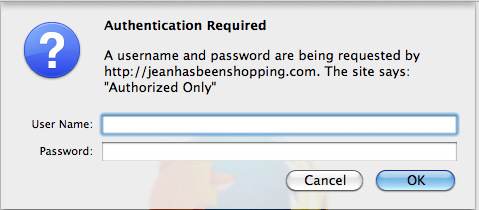
When you try to access your login page, you will now be greeted with a new window asking for your authorized user name and password.