PS Tips VI: Photo Correction

Posted on March 14th, 2010 by Jean

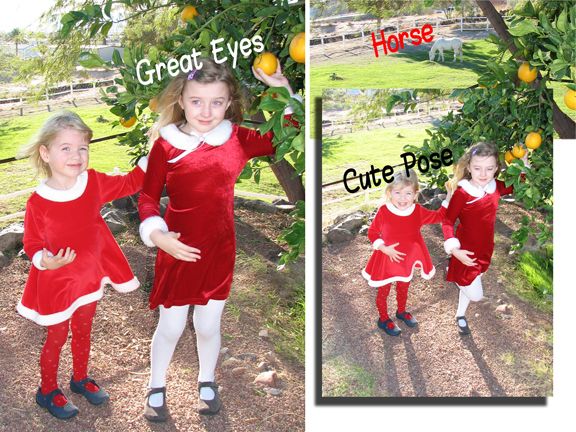
Take the best qualities of individual photos and merge them into one.


I’m using PhotoShop CS2.
 
Step 1: Open the photos. File, Open, and select the jpg images you wish to work with.
 
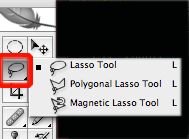
Step 2: Select Lasso Tool. In this instance, I lassoed the open eyes.


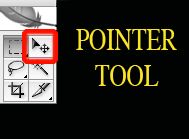
Step 3: Select your Pointer Tool. Drag the open eyes to your main (keeper) photo.


Note: I adjusted curves to lighten the eyes and more closely match the keeper photo. To adjust curves: Image, Adjustments, Curves. Slide the line on the grid UP to lighten or DOWN to darken (with jpg images. The reverse is actually true for cmyk images.)

 
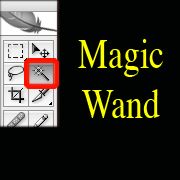
Step 4: Soften Edges. Using your Magic Wand, click anywhere on the image except for the new eyes. Make sure you are on the new layer.


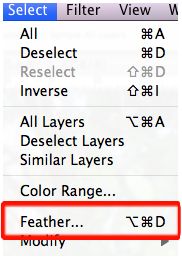
Select, Feather. I chose 5 pixels. Press “ok”, and then your Delete Key. You can press delete several times to get a softer edge. If you go too far, use Apple + Z to reverse the last step.


Step 5: Repeat. I used these same steps to bring the horse over to the “keeper” photo.
 
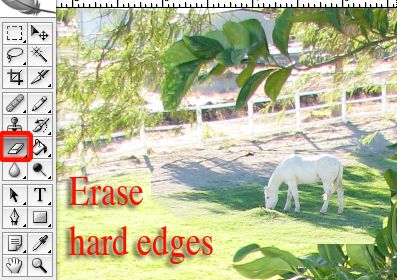
Step 6: Erase hard edges. Instead of feathering, I chose to use the Eraser Tool to soften the edges of the horse layer.


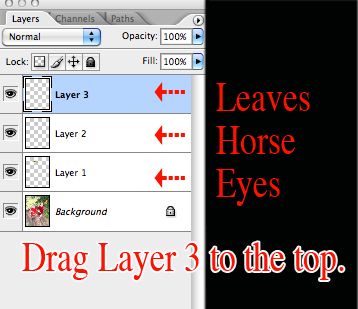
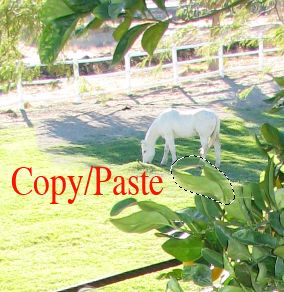
Step 7: Copy/Paste. While on your main (keeper) background, copy (Apple + C) a few individual leaves and paste (Apple + V). A new layer will be created with these leaves. In the Layers Window, drag this new layer to the top (above the horse layer).


Using your Pointer Tool, drag the leaves around the photo and place them in a believable, foreground position. Feather or erase hard edges.


Step 8: Merge Layers. Layer, Flatten Image.
 
Step 9: Save As. File, Save As, enter a new name so the original file will be unchanged.
 
FINISHED PRODUCT: Christmas 2008



Thank you for reading!

PS Tips VI: Photo Correction

Posted on March 14th, 2010 by Jean

Take the best qualities of individual photos and merge them into one.


I’m using PhotoShop CS2.
 
Step 1: Open the photos. File, Open, and select the jpg images you wish to work with.
 
Step 2: Select Lasso Tool. In this instance, I lassoed the open eyes.


Step 3: Select your Pointer Tool. Drag the open eyes to your main (keeper) photo.


Note: I adjusted curves to lighten the eyes and more closely match the keeper photo. To adjust curves: Image, Adjustments, Curves. Slide the line on the grid UP to lighten or DOWN to darken (with jpg images. The reverse is actually true for cmyk images.)

 
Step 4: Soften Edges. Using your Magic Wand, click anywhere on the image except for the new eyes. Make sure you are on the new layer.


Select, Feather. I chose 5 pixels. Press “ok”, and then your Delete Key. You can press delete several times to get a softer edge. If you go too far, use Apple + Z to reverse the last step.


Step 5: Repeat. I used these same steps to bring the horse over to the “keeper” photo.
 
Step 6: Erase hard edges. Instead of feathering, I chose to use the Eraser Tool to soften the edges of the horse layer.


Step 7: Copy/Paste. While on your main (keeper) background, copy (Apple + C) a few individual leaves and paste (Apple + V). A new layer will be created with these leaves. In the Layers Window, drag this new layer to the top (above the horse layer).


Using your Pointer Tool, drag the leaves around the photo and place them in a believable, foreground position. Feather or erase hard edges.


Step 8: Merge Layers. Layer, Flatten Image.
 
Step 9: Save As. File, Save As, enter a new name so the original file will be unchanged.
 
FINISHED PRODUCT: Christmas 2008


Thank you for reading!

Jesus Really Does Save (Updated)

Posted on March 7th, 2010 by Jean

This blog was originally posted on MySpace March 9, 2009. An update follows.
 
This morning, on Tom’s return trip from dropping Natalie off at school, he was pulled over for speeding. As he was waiting for the officer to do whatever it is officer’s do, Tom noticed something odd in his rear view mirror. “That’s something you don’t see every day”, Tom remarked to the officer. What caught their eye? A man pulling a huge cross along the highway. The cop took one look at Tom and said, “Today’s your lucky day. Now that we’ve seen Jesus, I’m going to let you go with a warning.”
 
Tom came home with a gleam in his eye, and I immediately knew something was up. Neither of us could believe his luck! But wait! He hadn’t taken a picture! The man couldn’t have gotten far, so Tom grabbed a camera and headed out. Didn’t take Tom long to find him hauling his cross (which conveniently has wheels on the bottom) further into town. Tom pulled over and snapped his photo. The man waved, approached Tom, and said the photo would cost him one dollar.
 
The two struck up a conversation. Tom is so personable, and apparently so is the man with the cross. Turns out his name is Cross Carrier Chuck, and he has been walking across the United States since 2000. It’s a ten year mission, and at the end of it, he’s going to write a book.
 
Tom gave C.C. Chuck (and his cross) a ride to Laughlin, and enough money to buy him a decent breakfast at any one of the casinos. Chuck’s next destination is, appropriately enough, Sin City.


UPDATE: The story did not end there. Far from it. Chuck’s feet were hurting, so he turned his cross around and returned to our town. Meanwhile the story of Tom’s lucky encounter with “Jesus” was blazing through the grapevine. As Chuck pulled his cross in front of the window of a local Bar & Grill, the patrons phoned Tom to say, “Jesus is back!” Tom hopped into his truck, caught up with Chuck, and bought him a bowl of soup.
 
Day turned to night, and Tom brought Chuck home for dinner. During the course of the evening, we discovered some interesting things about Chuck.
• His mother’s name is Mary.
• His favorite cocktail is the Long Island Iced Tea.
• His favorite pizza is ham, pineapple and anchovies.
• The cross is not a chick-magnet.
• He likes Rice Crispy Treats, but doesn’t know who Michael Phelps is or why Michael adorned my box of Treats. (One collectible down the drain.)
 
With the help of our friends, we were able to treat Chuck to a week’s stay at a local hotel. After speaking with his mother, we helped him establish a bank account using our address for his statements. His parents put money into his account, and he is able to make withdrawals with his ATM card. When the statements arrive, we are tempted to open them and see where Chuck has been. Instead, I file them away on the off chance he returns.
 
Chuck caught a bus and headed to the bible belt as Easter was on the horizon. He abandoned his cross in Needles, CA, where the bus station is located, and anticipated building a new cross when this particular journey was over.
 
You can find videos of Cross Carrier Chuck on YouTube. It was fun to show him the internet while he was here, and he could recall in great detail the circumstances behind being filmed.
 
If you ever run across Chuck, buy him a Long Island Iced Tea from me!

Menu

  • [instagram-feed]
  • Enter your email address:

    Delivered by FeedBurner

     
    Follow on Bloglovin

  • SPONSORS


    Stock Photos & Images

© 2014 JEAN HAS BEEN SHOPPING. ALL RIGHTS RESERVED.