This is a fun tutorial to show how to use Pixlr Express, a free online photo editor. It can give your photos a fresh, unique look. I use it to create collages.
The steps are easy.
1. Visit Pixlr Express and “click” Collage. Choose Layout, upload your photos and begin editing.

2. To apply different effects to each photo, click on the paintbrush at the top of each photo. Apply effects, then save to return to the collage.

3. To apply the same effect to all of the photos, choose finished. Then apply effects.

Edit options include Adjustment, Effect, Overlay, Border, Sticker, and Text. Select each one to see your choices. With Adjustment, you can rotate, crop, lighten, etc. Effects contain the filters. Overlays are bursts of images.

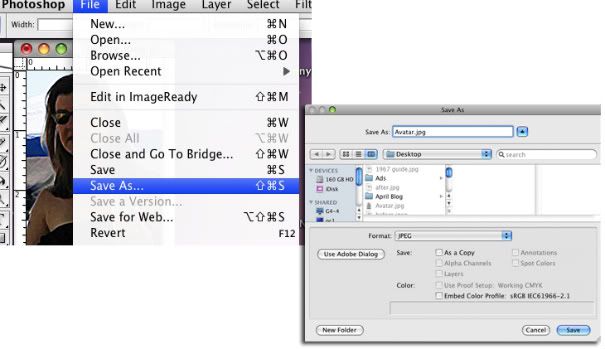
When finished, save to your computer.

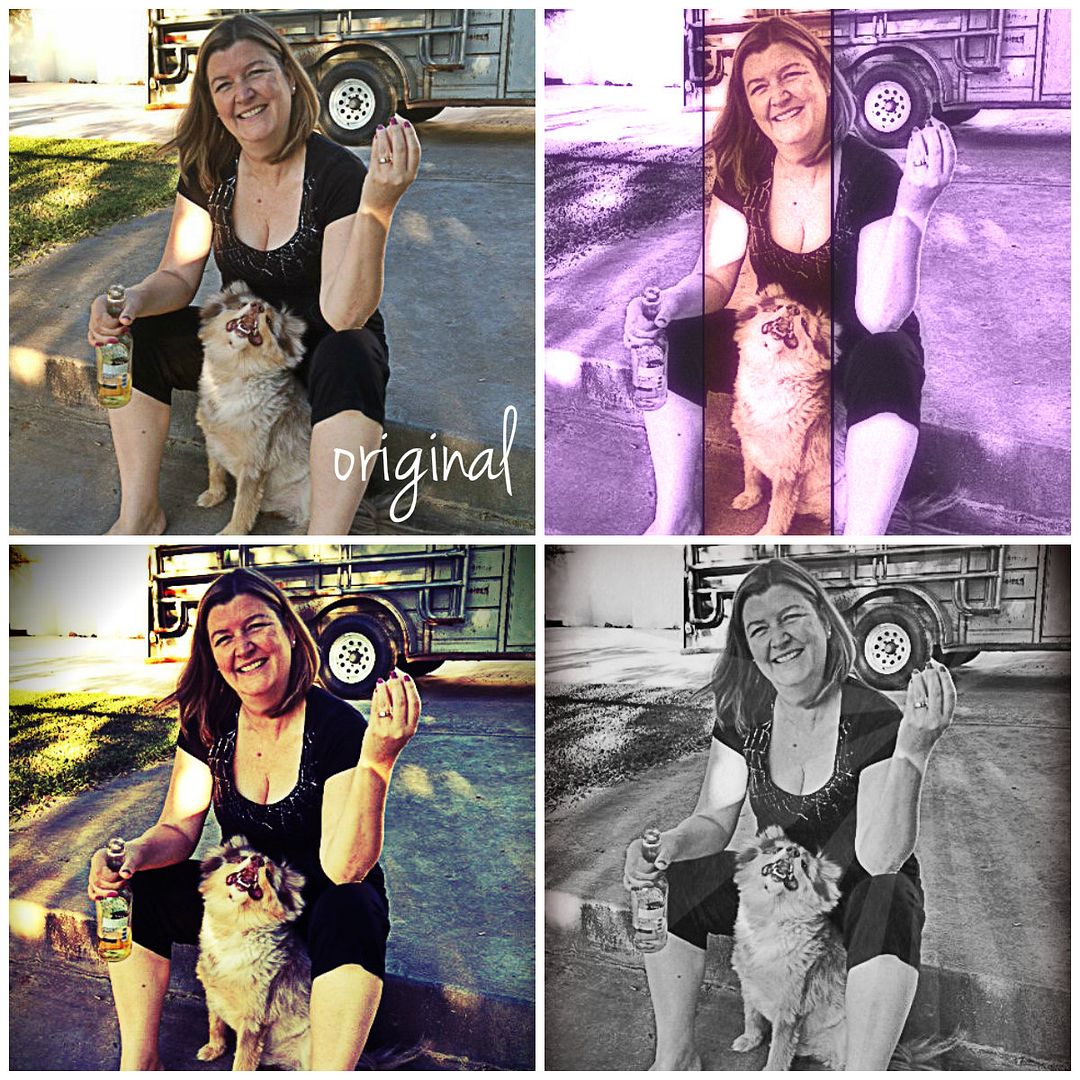
My edits in the top collage were as follows:
Top Left = Jenna Sue Text
Top Right = Hagrid Effect
Bottom Left = Satya, Gram, Helena and Hans Effects
Bottom Right = Tom and Ingrid Effects, bronze and Roger Overlays

Here’s one my daughter made! Now I’m holding a pop-tart while a monkey plays on the lawn. Super sweet!
Pixlr Express is also available to download for FREE to your iPad or iPhone.
Give it a try, and share your results!
Tags: effects, Filters, free online editor, photo editing, photography, photos, Pixlr, tutorial