How To Hide Your WordPress Login

Posted on April 27th, 2018 by Jean

After receiving several alerts today that “user locked out from signing in”, I decided to hide my wordpress login page. I had successfully utilized this method of hiding my login page years ago on my business site, but could not find the directions today when I so desperately needed them.

A quick review of 2 key wordpress files allowed me to figure out how to proceed. There are plugins out there to hide your login, but this is the method used through your cpanel.

PART ONE

Log in to your cpanel account

Choose File Manager from the Files Section

Under “settings” (upper right corner), select “Show Hidden Files”

In your home file, look for .htaccess

Highlight .htaccess and click EDIT from your top tool bar

A text editor notice appears. Click EDIT to proceed

After text in this file, input the following

ErrorDocument 401 “Unauthorized Access”
ErrorDocument 403 “Forbidden”
<FilesMatch “wp-login.php”>
AuthName “Authorized Only”
AuthType Basic
AuthUserFile /home/yourdirectory/.wpadmin
require valid-user
</FilesMatch>
<Files 403.shtml>
order allow,deny
allow from all
</Files>

Insert your directory name (noted in red above). It will show you at the top of the page, CURRENTLY EDITING HOME/______/

You can also enter IP addresses you’d like to block. They would be entered after </files>

Example:

deny from 77.92.73.102
deny from 66.147.244.109
deny from 208.117.46.9

And so on. My list of blocked IPs is quite long.

Hit SAVE

PART TWO

Now you have to create the .wpadmin file.

Click on the top file in the tree on the left of your cpanel. It should say home/_____ <— your directory

Click on NEW FILE (top left of the tool bar)

Name the file .wpadmin

Highlight the file and choose EDIT

A text-editor warning appears, click EDIT and GO

In this file, you need to add a code that is generated here.

Using the online .htpasswd generator, choose your user name and password. These do NOT have to match your WordPress login.

Copy the code that is generated, and paste it into your new .wpadmin file. SAVE

You’re done!

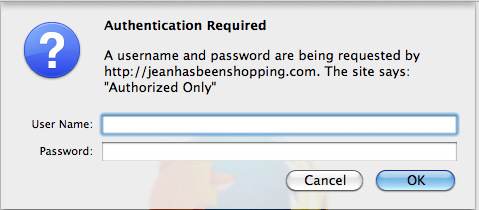
When you try to access your login page, you will now be greeted with a new window asking for your authorized user name and password.
4 Little Words Keep Readers From Straying

Posted on November 6th, 2010 by Jean

You’re losing readers. Inadvertently, but none the less, there they go. You asked them to check out your friend’s blog.
 
“Click the link!”
 
So they did. I did.
 
I’m all for a good pimp. Believe me, my pimp hand is strong.
 
Your friend is great! I comment, check out their profile, and follow them on twitter. Your friend (my new friend) is pimping their friend’s website. I follow the bouncing link, and feast my eyes on a beautiful portfolio. Click on one? Why sure! Now I’m all wrapped up in an apron aficionado’s blog, drooling over apple recipes. Yes, this really did happen.
 
So now my break is over, and I’m closing windows. What should I see at the back of the group? Your page!
 
After meandering all over the internet, I forgot to leave you a comment!
 
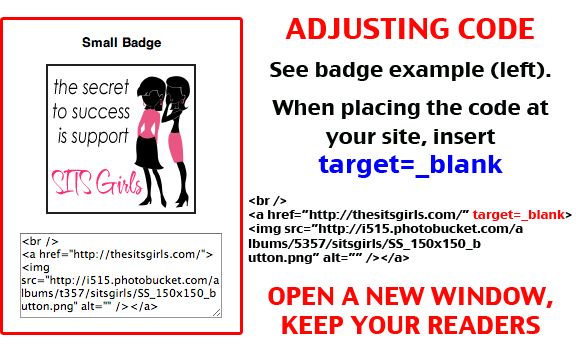
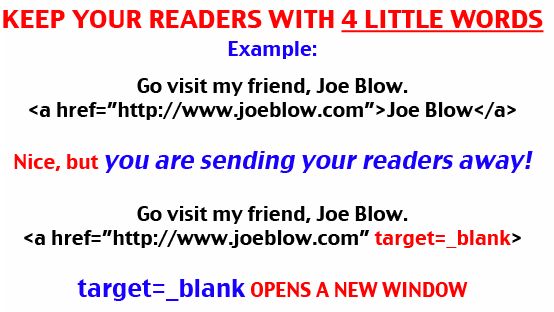
How can you prevent me from wandering off and not finding my way back? Four little words: target equals underscore blank.
 
Inserting a little bit of html behind your links will open a new window instead of directing people away from your sight.


This holds true with buttons, links to Twitter, FaceBook, and blogging groups. Edit their code. It’s easy!


• Do you use these four magical words?
• Do you ever wander so far off the beaten path, you forget where you started?

FaceBook Fan Pages

Posted on July 31st, 2010 by Jean

• Do you have a FaceBook Fan Page?
• Do you have any tips for making the most out of a fan page?
• What are some of your favorite pages?
 
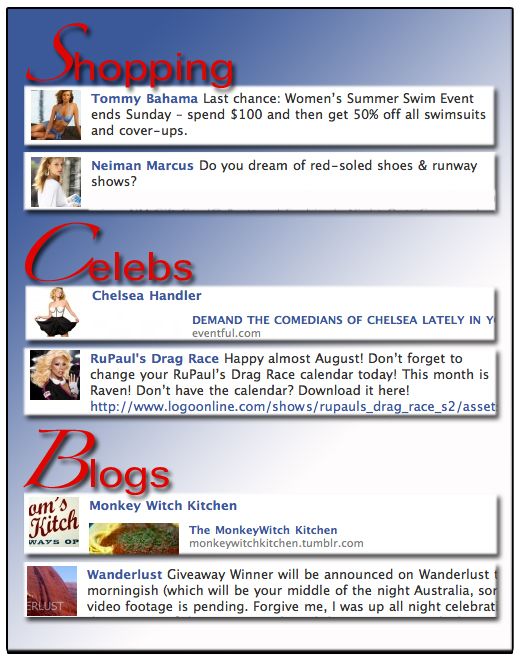
Some of my favorite pages are:

TommyBahama NeimanMarcus ChelseaHandler RuPaul MonkeyWitch Wanderlust


A FaceBook Fan Page allows you to update and interact with “fans” while keeping your personal profile private.
 
CREATE
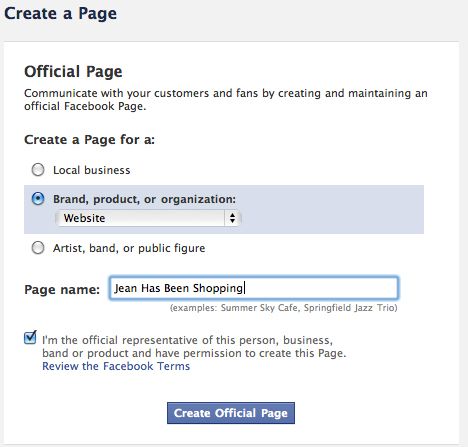
When you are ready to create a Fan Page, visit FaceBook’s Create A Page.


Complete the fields.
 
PICTURE
Your Fan Page picture can safely be 200 pixels wide by 600 pixels long.
 
THUMBNAIL
Once uploaded, set your thumbnail pic by selecting the pencil icon on the upper right corner of your main page photo.


OPTIONAL STEP:
Fan Pages can have a landing page. A landing page is the first page visitors see.
 
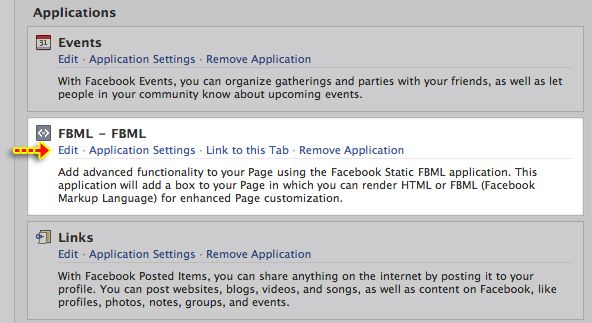
To insert jpgs and/or links on your landing page, you will need to install Static FBML. This FB application allows html to work on your page(s).
 
From your main fan page, choose, “Edit Page”. Scroll down to, “More Applications”, and click, “Choose More”. Search the Apps for Static FBML. Here is the direct link: Static FBML. Click, “Add To Page”.
 
Your fan page will now have a new tab titled, “FMBL+”. From your main fan page, again select, “Edit Page”. Static FBML will now have it’s own place under Apps.


Choose, “edit” to rename the tab and insert your html.
 
I named my tab, “Welcome”, and created a landing page jpg that is 757 pixels x 522 pixels. I chose not to link it to my website so I would not redirect potential fans as soon as they had found my page. (Effective Aug. 24, 2010: The maximum width of your Fan Page welcome graphic is 520 pixels. It can be wider, but portions of your graphic will be cut off by advertising in the sidebar.)
 
As an added note, when I hosted my landing page jpg at Photobucket, the html did not work, and my image was a broken link. After much frustration, I uploaded the jpg to my wordpress site (under Media), and the link did work.


WALL SETTINGS
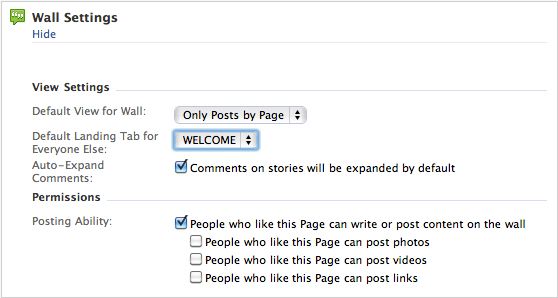
Return once again to the main page of your fan page, and select, “Edit Page”. Time to edit your wall settings. Here you can choose your landing page, and select whether fans can post videos, photos or links.


PROMOTE
Now you are ready to promote your fan page. From your main fan page, you can share the link to your personal profile, or suggest to friends.
 
Create your Fan Page Badge to display on your website. From your main page/edit page, “Promote With FaceBook” badge is in the right column. Insert the html on your website.
 
UPDATES
Use the Networked Blogs app. to automatically post links to your latest blog.
 
URL
Once you have 25 fans, you can change the url of your page to something more personalized. Find that setting here; scroll to the bottom, and Set A User Name for your pages.

Menu

  • [instagram-feed]
  • Enter your email address:

    Delivered by FeedBurner

     
    Follow on Bloglovin

  • SPONSORS


    Stock Photos & Images

© 2014 JEAN HAS BEEN SHOPPING. ALL RIGHTS RESERVED.